> ## Documentation Index
> Fetch the complete documentation index at: https://docs.mykit.info/llms.txt
> Use this file to discover all available pages before exploring further.
# Dashboard
> The dashboard is your operational at-a-glance view — stat cards, action items, upcoming sessions, and usage charts all on one page.
## Overview
The dashboard is the first screen after sign-in. It pulls live data from every module and surfaces the things that need your attention without requiring you to dig into each section.
***
## Stat cards
Four summary cards sit at the top of the page and link directly to the relevant module.
| Card | What it shows |
| ------------------ | ------------------------------------------------------------------------------------------- |
| **Firearms** | Total firearm count with an in-service / out-of-service breakdown |
| **Rounds on Hand** | Total round count across all calibers and the estimated dollar value of your ammo inventory |
| **Range Sessions** | All-time count of logged range sessions |
| **Loadouts** | Total number of saved loadouts |
Click any card to navigate directly to that module.
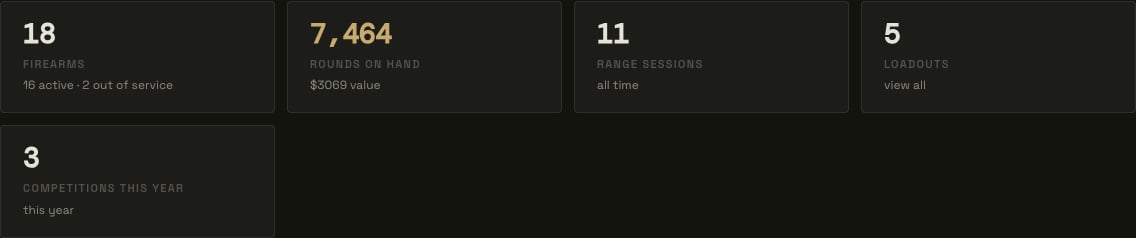 The dashboard is widget-based: click **Configure** to add, remove, resize, or reorder cards and sections, including which stats appear in this row.
***
## Action items
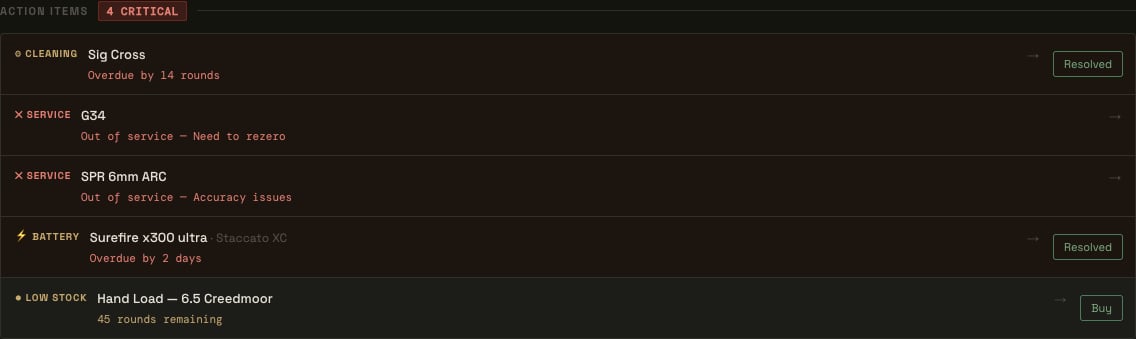
The Action Items list is the dashboard's main focus. It automatically surfaces anything that needs your attention, ordered with critical items first.
The dashboard is widget-based: click **Configure** to add, remove, resize, or reorder cards and sections, including which stats appear in this row.
***
## Action items
The Action Items list is the dashboard's main focus. It automatically surfaces anything that needs your attention, ordered with critical items first.
 ### Item types
| Type | Priority | Triggered when |
| ---------------- | ------------------- | ---------------------------------------------------------------------------------- |
| **Service** | Critical | A firearm or gear item is marked out of service |
| **Cleaning** | Critical or Warning | A firearm has exceeded its cleaning round interval, or is within 10% of it |
| **Battery** | Critical or Warning | An accessory or gear item with battery tracking is overdue or due within 14 days |
| **Out of Stock** | Critical | An ammo lot or reloading component (powder, projectiles, primers, brass) hits zero |
| **Low Stock** | Warning | An ammo lot or reloading component falls below its configured low-stock threshold |
| **Setup** | Warning | A module has no items yet — shown as a nudge to get started |
### Resolving items
* **Cleaning and battery items** show a **Resolved** button directly on the row. Clicking it marks the firearm as cleaned or the battery as replaced without leaving the dashboard.
* **Low-stock and out-of-stock ammo items** show a **Buy** button. If the ammo lot has a product URL saved, clicking Buy opens that URL in a new tab. Otherwise it navigates to the ammo edit screen.
* **Service and setup items** link to the relevant module where the action must be taken.
When all items are resolved, the list displays "All clear — no action items."
***
## Upcoming range sessions
Below action items, any range sessions with a future date are listed in chronological order. Each entry shows the session date, location, scheduled firearms, and ammo. Click an entry to open the full session detail in Range Day.
### Item types
| Type | Priority | Triggered when |
| ---------------- | ------------------- | ---------------------------------------------------------------------------------- |
| **Service** | Critical | A firearm or gear item is marked out of service |
| **Cleaning** | Critical or Warning | A firearm has exceeded its cleaning round interval, or is within 10% of it |
| **Battery** | Critical or Warning | An accessory or gear item with battery tracking is overdue or due within 14 days |
| **Out of Stock** | Critical | An ammo lot or reloading component (powder, projectiles, primers, brass) hits zero |
| **Low Stock** | Warning | An ammo lot or reloading component falls below its configured low-stock threshold |
| **Setup** | Warning | A module has no items yet — shown as a nudge to get started |
### Resolving items
* **Cleaning and battery items** show a **Resolved** button directly on the row. Clicking it marks the firearm as cleaned or the battery as replaced without leaving the dashboard.
* **Low-stock and out-of-stock ammo items** show a **Buy** button. If the ammo lot has a product URL saved, clicking Buy opens that URL in a new tab. Otherwise it navigates to the ammo edit screen.
* **Service and setup items** link to the relevant module where the action must be taken.
When all items are resolved, the list displays "All clear — no action items."
***
## Upcoming range sessions
Below action items, any range sessions with a future date are listed in chronological order. Each entry shows the session date, location, scheduled firearms, and ammo. Click an entry to open the full session detail in Range Day.
 ***
## Upcoming competitions
Scheduled competition matches with a future date appear in the same area. Each entry shows the match name, date, and stage count. Click to open the competition detail in Range Day.
***
## Rounds trend
A configurable bar chart at the bottom of the page tracks rounds fired over time, pulled from range sessions and competitions.
***
## Upcoming competitions
Scheduled competition matches with a future date appear in the same area. Each entry shows the match name, date, and stage count. Click to open the competition detail in Range Day.
***
## Rounds trend
A configurable bar chart at the bottom of the page tracks rounds fired over time, pulled from range sessions and competitions.
 * Toggle between **Weekly** and **Monthly** buckets.
* Set **Periods** to control how many bars are shown (e.g. the last 12 weeks or 12 months).
* The total for the current period and the trend versus the prior period are shown above the chart.
* Toggle between **Weekly** and **Monthly** buckets.
* Set **Periods** to control how many bars are shown (e.g. the last 12 weeks or 12 months).
* The total for the current period and the trend versus the prior period are shown above the chart.