> ## Documentation Index
> Fetch the complete documentation index at: https://docs.mykit.info/llms.txt
> Use this file to discover all available pages before exploring further.
# Range Day
> Log range sessions, build drill templates, record competition results, and track performance over time.
## Overview
Range Day ties your Armory, Gear, and Ammunition data together into training records. It has four tabs: **Sessions**, **Drills**, **Competitions**, and **Performance**.
***
## Sessions tab
The Sessions tab is the default view. It lists all logged range sessions in reverse-chronological order. Upcoming sessions appear on the main dashboard.
### Logging a session
1. Navigate to **Range Day** in the left sidebar.
2. Click **+ Session**.
3. Fill in the date, start time, duration (minutes), and location.
4. Add one or more **firearms** to the session, each with a round count and optional ammo lot.
5. Optionally select a **loadout** used for the session.
6. Add any session notes and save.
### Firearms and ammo
Each session supports multiple firearm rows. For each firearm you can:
* Select the firearm from your Armory.
* Enter the number of rounds fired.
* Select the ammo lot used — the dropdown is automatically filtered to calibers compatible with the selected firearm.
When a session is saved, rounds fired are **automatically deducted** from the selected ammo lot's inventory count. This keeps your Ammunition module stock accurate without manual editing.
### Google Calendar export
On any saved session card, click the **Cal** button to open a pre-filled Google Calendar event. The event includes the session date, time, location, firearms, round counts, and loadout details — useful for scheduling future sessions or keeping a training log outside the app.
### Documents
Each session has a **Documents** section for file attachments — range rules, target photos, or any other file worth keeping with the record. Upload a file with a label and optional description; the same attachment pattern is available on Competitions.
***
## Drills tab
Drills are reusable templates that define a course of fire. You run a drill, log the result, and track improvement over time on the Performance tab.
### Creating a drill
1. Go to **Range Day → Drills** tab.
2. Click **+ Drill**.
3. Enter a name (e.g. "Bill Drill", "El Presidente") and select a discipline.
4. Choose a drill mode and scoring method.
5. Build out the steps.
6. Save.
### Drill modes
| Mode | Description |
| -------------- | -------------------------------------------------------------------------------------------------- |
| **PAR Timer** | A fixed time limit — the goal is to complete the drill before the beep. Set a par time in seconds. |
| **Shot Count** | Fire a set number of shots and record the elapsed time. Optionally set a target time. |
Both modes support an optional **start delay** (0.1–10 seconds) for the buzzer.
### Scoring methods
| Method | When to use |
| -------------- | ------------------------------------------------------------- |
| **Time** | Fastest clean run wins. Requires a time entry on each result. |
| **Percentage** | Score as a percentage of a perfect run (e.g. USPSA-style). |
| **Hits** | Total hits on target (e.g. steel plates). |
| **Score** | Calculated point total. |
### Multi-step drill builder
Drills are built from an ordered list of steps. Each step has an **action type**:
* **Shoot** — fire at a target. Set the yard line and shot count. The total round count for the drill is automatically calculated from all Shoot steps.
* **Move To** — move to a position. Enter the destination (e.g. "3 yard line", "cover position").
* **Action** — any other task (e.g. "Reload", "Draw from holster", "Make safe").
Every step also supports:
* **Yard line** — distance to the target in yards.
* **Par time** — a per-step time limit in seconds (optional, supplements the overall par).
* **Points possible** — max points for this step (used with Score or Percentage methods).
* **Notes** — e.g. "strong-hand only", "no sights".
Steps can be reordered with the up/down controls and removed individually.
***
## Competitions tab
The Competitions tab tracks formal matches — USPSA, IDPA, PRS, and others.
### Competition types
USPSA · IDPA · 3-Gun · PRS · NRL · Steel Challenge · Other
### Adding a match
1. Go to **Range Day → Competitions** tab.
2. Click **+ Add Match**.
3. Fill in the match name, competition type, division, and optionally a classifier number.
4. Set the date, start time, and location.
5. Select a loadout — this auto-populates the firearms list with the firearms in that loadout.
6. Add or adjust firearm rows with rounds fired and ammo lots used.
7. Optionally expand the **Results** section and enter your scores.
8. Add after-action notes and save.
### Results fields
| Field | Notes |
| -------------- | -------------------------------------------------------------------- |
| Overall Place | Finish position across all competitors |
| Division Place | Finish position within your division |
| Total Points | Raw point total |
| Hit Factor | Points per second (USPSA-style) |
| Results URL | Link to the official posted results, e.g. a PractiScore results page |
Results are optional — you can record a match before scores are posted and edit them in later.
### After-action notes
The competition form has two separate note fields:
* **Notes** — general session observations.
* **After-Action** — lessons learned, things to work on, or tactical takeaways. Kept separate so it's easier to review post-match analysis independently.
### Documents
Competitions (and Sessions) each have a **Documents** section for file attachments — squad sheets, stage diagrams, scorecards, or anything else worth keeping with the record. Upload a file with a label and optional description; attached documents are listed with the ability to open or remove them.
***
## Performance tab
The Performance tab is where you log individual drill results and review your progress over time.
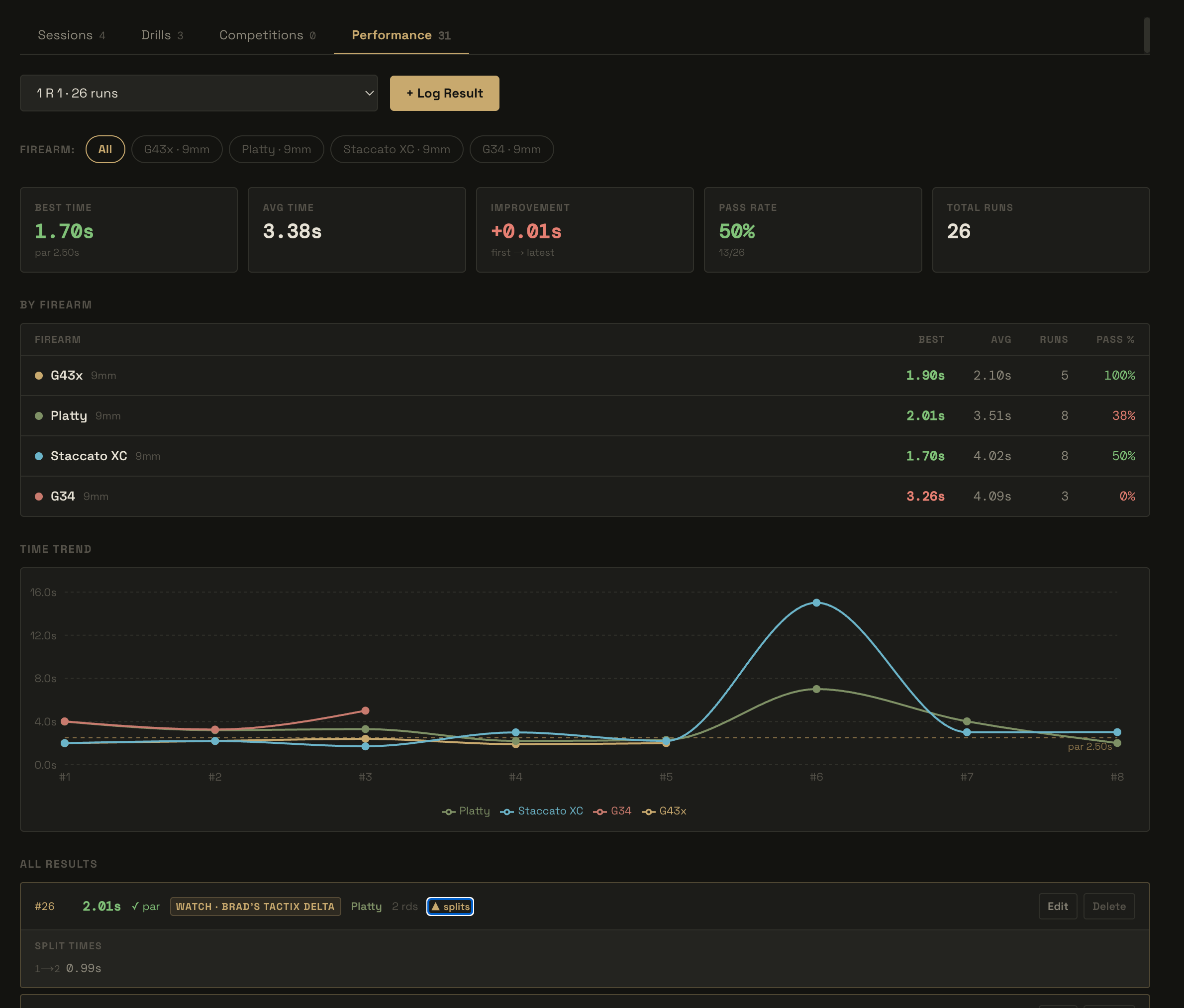 ### Logging a result
1. Go to **Range Day → Performance** tab.
2. Click **+ Log Result**.
3. Select the drill and optionally the firearm used.
4. Enter the result fields based on the drill's scoring method:
| Scoring method | Fields shown |
| -------------- | -------------------------------- |
| Time | Time (seconds) — required |
| Percentage | Time (optional) + Score (%) |
| Hits | Hits count |
| Score | Time (optional) + Score (points) |
5. Enter round count and any notes.
6. Save.
### Kit context on results
Every logged result shows the firearm, ammo, and loadout used for that run inline in the results list — not just the time or score. This makes it possible to see, at a glance, which equipment combination ("kit") produced which result without opening each entry.
### Performance pivot
Use the **Compare by** control to pivot the drill's results by **Firearm**, **Ammo**, or **Loadout**. Each dimension groups your results into setups and plots them as separate lines on the performance chart, so you can see how switching firearms, ammo, or loadouts affects your times or scores for the same drill. Click a group in the legend or table to filter the chart and results list down to that single setup; click again to clear the filter.
### Best Kit recommender
Above the results list, the **Best Kit** card automatically ranks your firearm/ammo/loadout combinations for the selected drill by average result and surfaces the strongest one:
* Shows the winning setup's average result, run count, and — once there's more than one qualifying setup — how far ahead it is of the next best.
* Tags each recommendation with a confidence level (**High confidence**, **Limited data**, or **Early data**) based on how many runs that setup has logged.
* Expand **All setups** to see every combination ranked in a table with average, best, and run count.
* A setup needs a minimum number of logged runs before it's eligible to be ranked; until then the card shows progress toward unlocking a recommendation instead of a result.
### Integration hooks
Results can also be submitted automatically through hardware integrations:
* **Watch Integration** — send a drill to a paired Garmin watch. The watch tracks the run and submits the result back to the Performance tab automatically. See [Watch Integration](/watch/overview).
* **Shot Timer Integration** — connect a Shooter Global Shot Timer via Bluetooth. Start a drill from the app, run it on the timer, and the result is captured and graphed automatically. See [Shot Timer Integration](/shot-timer/overview).
***
## Integrations
Send drills to a Garmin Tactix Delta and receive shot-detected results automatically.
Connect a Shooter Global Shot Timer via Bluetooth to capture and graph drill results.
### Logging a result
1. Go to **Range Day → Performance** tab.
2. Click **+ Log Result**.
3. Select the drill and optionally the firearm used.
4. Enter the result fields based on the drill's scoring method:
| Scoring method | Fields shown |
| -------------- | -------------------------------- |
| Time | Time (seconds) — required |
| Percentage | Time (optional) + Score (%) |
| Hits | Hits count |
| Score | Time (optional) + Score (points) |
5. Enter round count and any notes.
6. Save.
### Kit context on results
Every logged result shows the firearm, ammo, and loadout used for that run inline in the results list — not just the time or score. This makes it possible to see, at a glance, which equipment combination ("kit") produced which result without opening each entry.
### Performance pivot
Use the **Compare by** control to pivot the drill's results by **Firearm**, **Ammo**, or **Loadout**. Each dimension groups your results into setups and plots them as separate lines on the performance chart, so you can see how switching firearms, ammo, or loadouts affects your times or scores for the same drill. Click a group in the legend or table to filter the chart and results list down to that single setup; click again to clear the filter.
### Best Kit recommender
Above the results list, the **Best Kit** card automatically ranks your firearm/ammo/loadout combinations for the selected drill by average result and surfaces the strongest one:
* Shows the winning setup's average result, run count, and — once there's more than one qualifying setup — how far ahead it is of the next best.
* Tags each recommendation with a confidence level (**High confidence**, **Limited data**, or **Early data**) based on how many runs that setup has logged.
* Expand **All setups** to see every combination ranked in a table with average, best, and run count.
* A setup needs a minimum number of logged runs before it's eligible to be ranked; until then the card shows progress toward unlocking a recommendation instead of a result.
### Integration hooks
Results can also be submitted automatically through hardware integrations:
* **Watch Integration** — send a drill to a paired Garmin watch. The watch tracks the run and submits the result back to the Performance tab automatically. See [Watch Integration](/watch/overview).
* **Shot Timer Integration** — connect a Shooter Global Shot Timer via Bluetooth. Start a drill from the app, run it on the timer, and the result is captured and graphed automatically. See [Shot Timer Integration](/shot-timer/overview).
***
## Integrations
Send drills to a Garmin Tactix Delta and receive shot-detected results automatically.
Connect a Shooter Global Shot Timer via Bluetooth to capture and graph drill results.