

Features
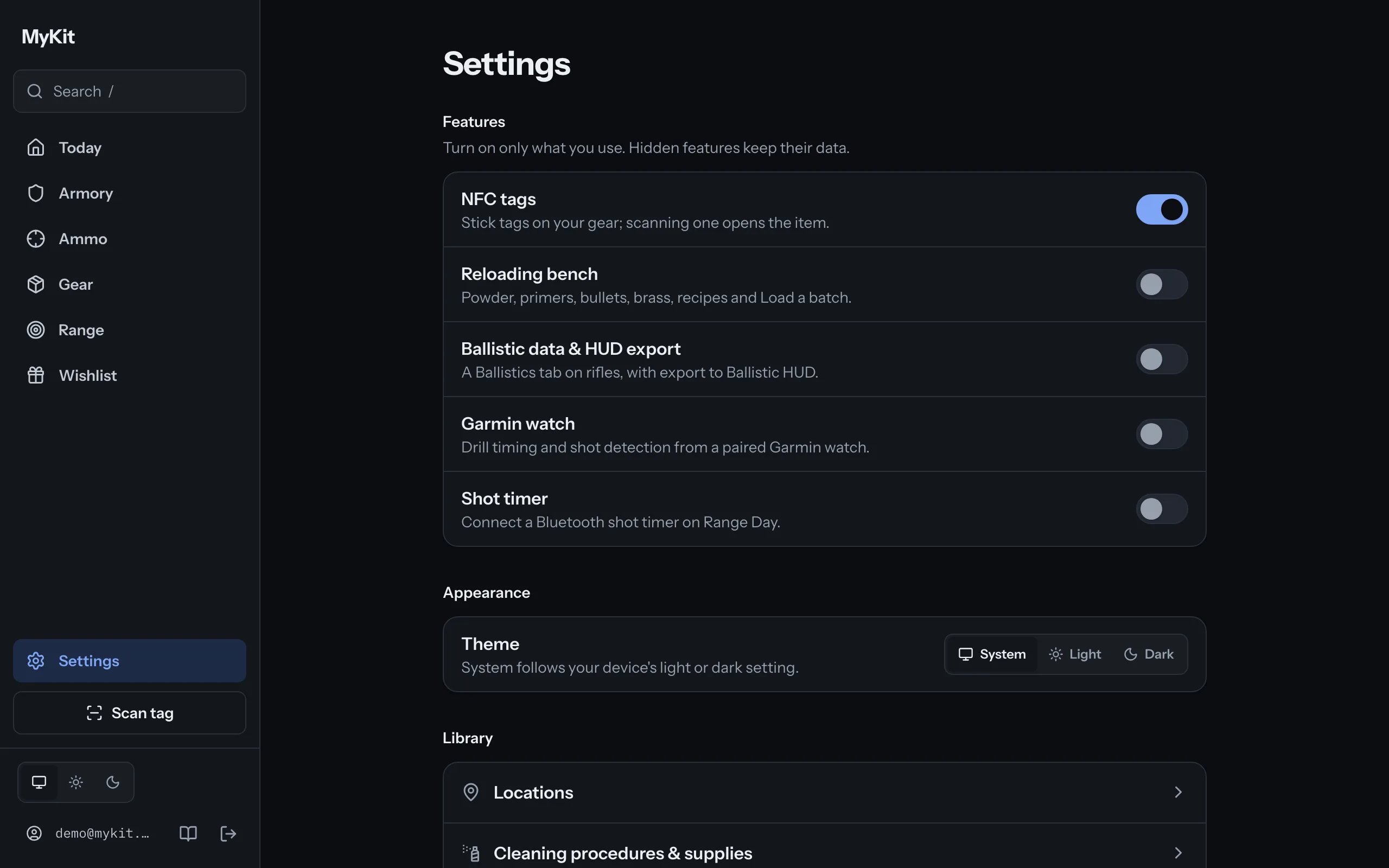
Switches for optional tools: NFC tags, Reloading bench, Ballistic data & HUD export, Garmin watch and Shot timer. Turn on only what you use. Hidden features keep their data.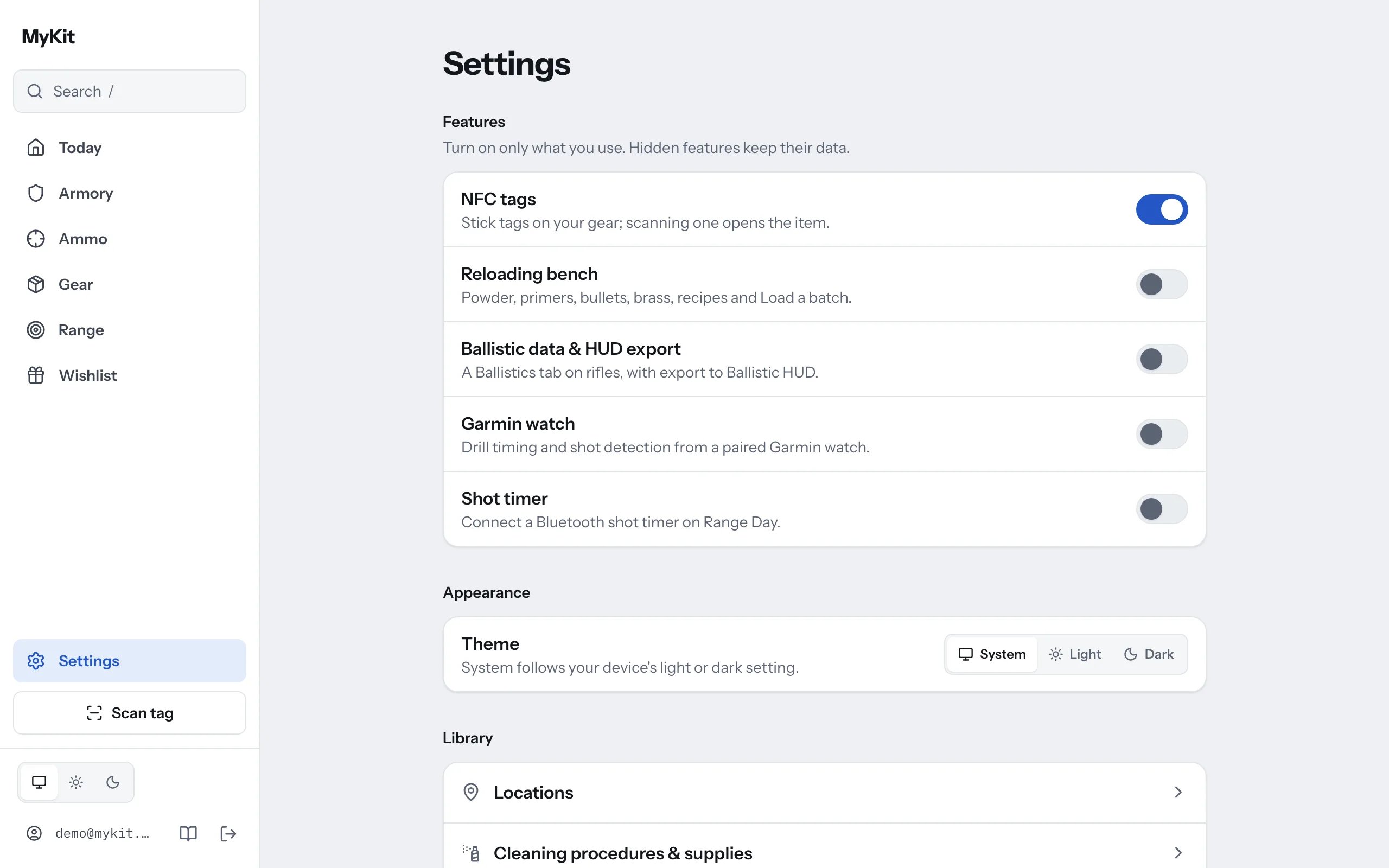
Appearance
Choose System, Light or Dark under Theme. System follows your device’s light or dark setting. Your choice is remembered on the device you set it on.Library
Lists you build once and pick from across the app.Locations
The places you keep things, such as a safe, a nightstand or a truck. Once you’ve added them, you can pick a location on any firearm, spare part, ammo lot or gear item. Parts installed on a firearm follow that firearm, so they don’t need their own.- Add a location: type a name and select Add.
- Rename: select the pencil icon next to it, change the name and select Save.
- Delete: select the bin icon and confirm. Items that were kept there show no location afterwards.
Cleaning procedures & supplies
Your cleaning library: step-by-step procedures and the supplies they use. You can assign a procedure to any firearm. Procedures. Select New procedure, give it a name and select Save and open. On the procedure’s page:- Select + Add steps (or Edit steps) to write each step: a Title, Instructions, and the supplies it uses. Use the arrows to reorder steps and the bin to remove one, then select Save steps.
- Edit the Details (name and description) in place.
- Used by lists the firearms that follow it.
- Print opens a printer-friendly copy.
- Delete procedure removes it. Firearms that used it keep their cleaning interval and history.
- With Keep count on, the page shows a stock card for changing the count, Count settings (Unit, Alert below and Cost per unit) and the stock history. Counted supplies show under Ammo > Supplies, and appear on Today when they drop below your alert level.
- Turning it off clears the count but keeps the unit, alert level and cost for next time.
Caliber list
Controls the choices in the Caliber dropdown across the app.- Add your own: type a caliber (for example, 6mm Dasher) and select Add. It appears under Your calibers. Select the bin icon to take it off the list.
- Hide built-in calibers you never use: select Hide next to one under Built-in. Hidden ones are marked Hidden. Select Show to bring one back.
Insurance report
A printable record of your firearms and parts for your insurer. It shows totals for Firearms, Parts and Recorded value, a breakdown By location, then every firearm with its serial number, make and model, caliber, location, purchase date, value and installed parts, followed by your Spare parts.- Select Print or save PDF to print it or save it as a PDF.
- Select CSV to download it as a spreadsheet file.
Account
NFC tags
This link only appears when NFC tags is turned on in Features. Every NFC tag in your workspace, grouped into Linked, Blank and Retired. From here you can rename, assign, reassign or retire a tag, and create a batch of blank tags to write in one sitting. See NFC tags for the full guide.Billing & subscription
Your plan is MyKit: $10 a month, with every section included. What you see depends on where your subscription stands:
Manage subscription and Update payment card open Stripe’s secure billing portal, where you can change your card, download invoices or cancel.
If a payment fails or your subscription ends, MyKit opens Billing & subscription until you update your card or reactivate. Your data is kept. The free trial is once per workspace, so reactivating starts a paid subscription straight away.