
Summary
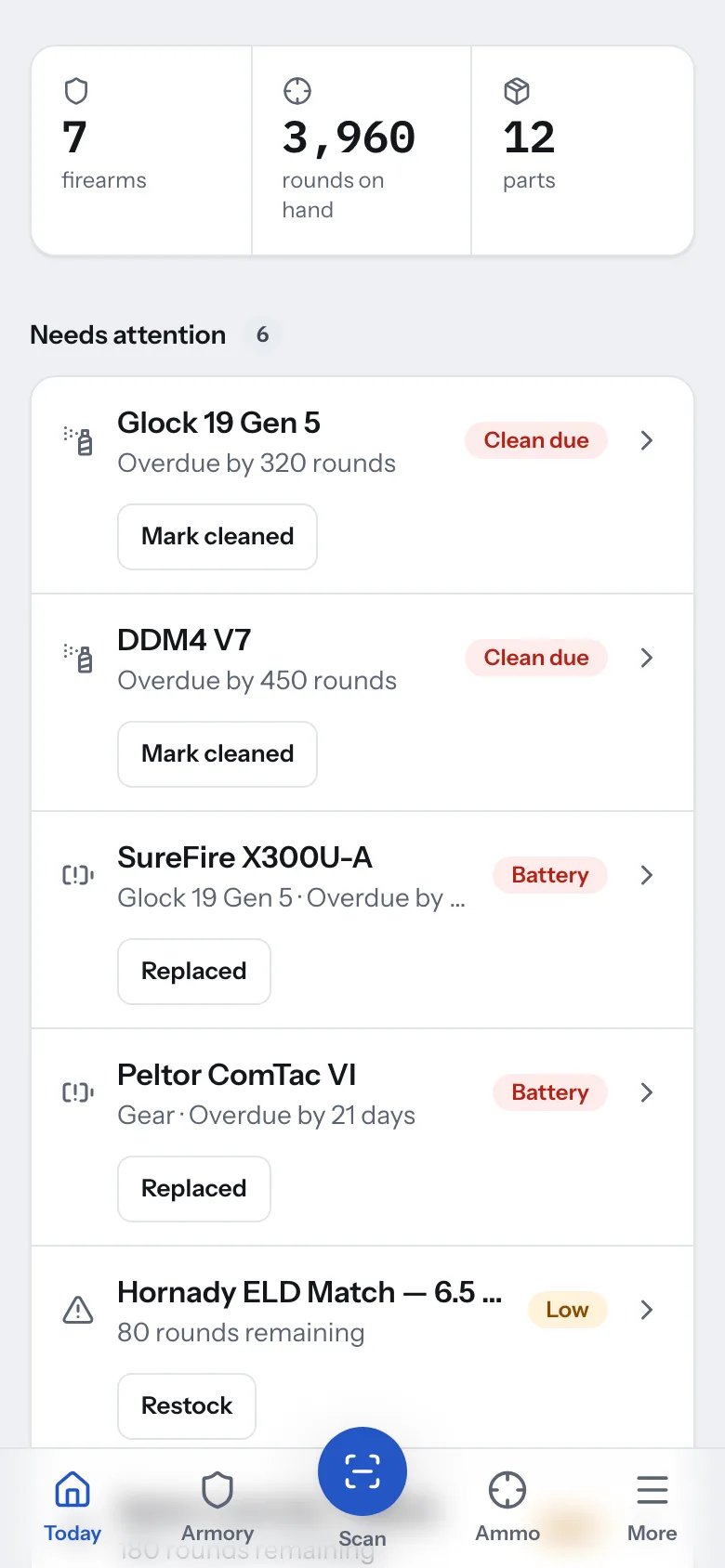
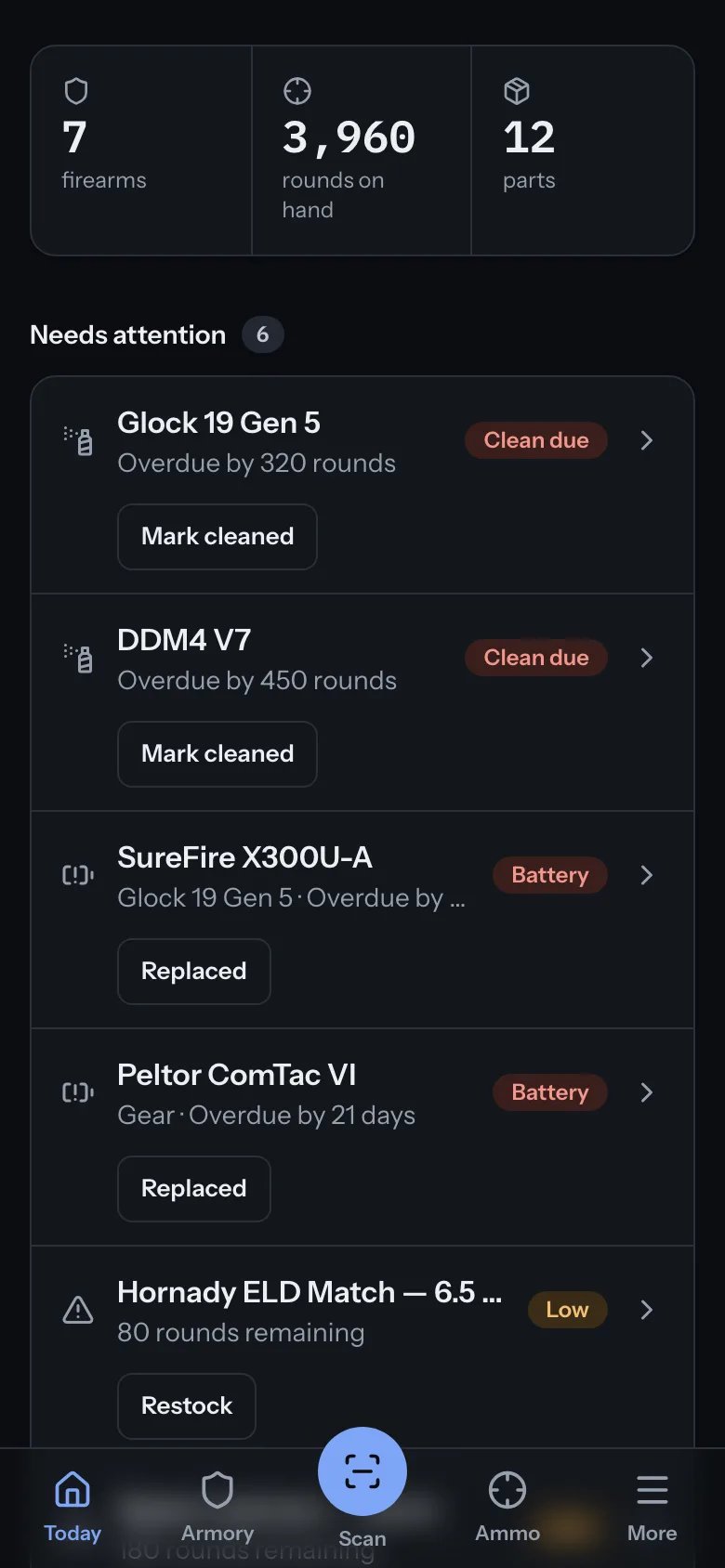
Across the top are three counts: firearms, rounds on hand and parts. Select one to jump to that list.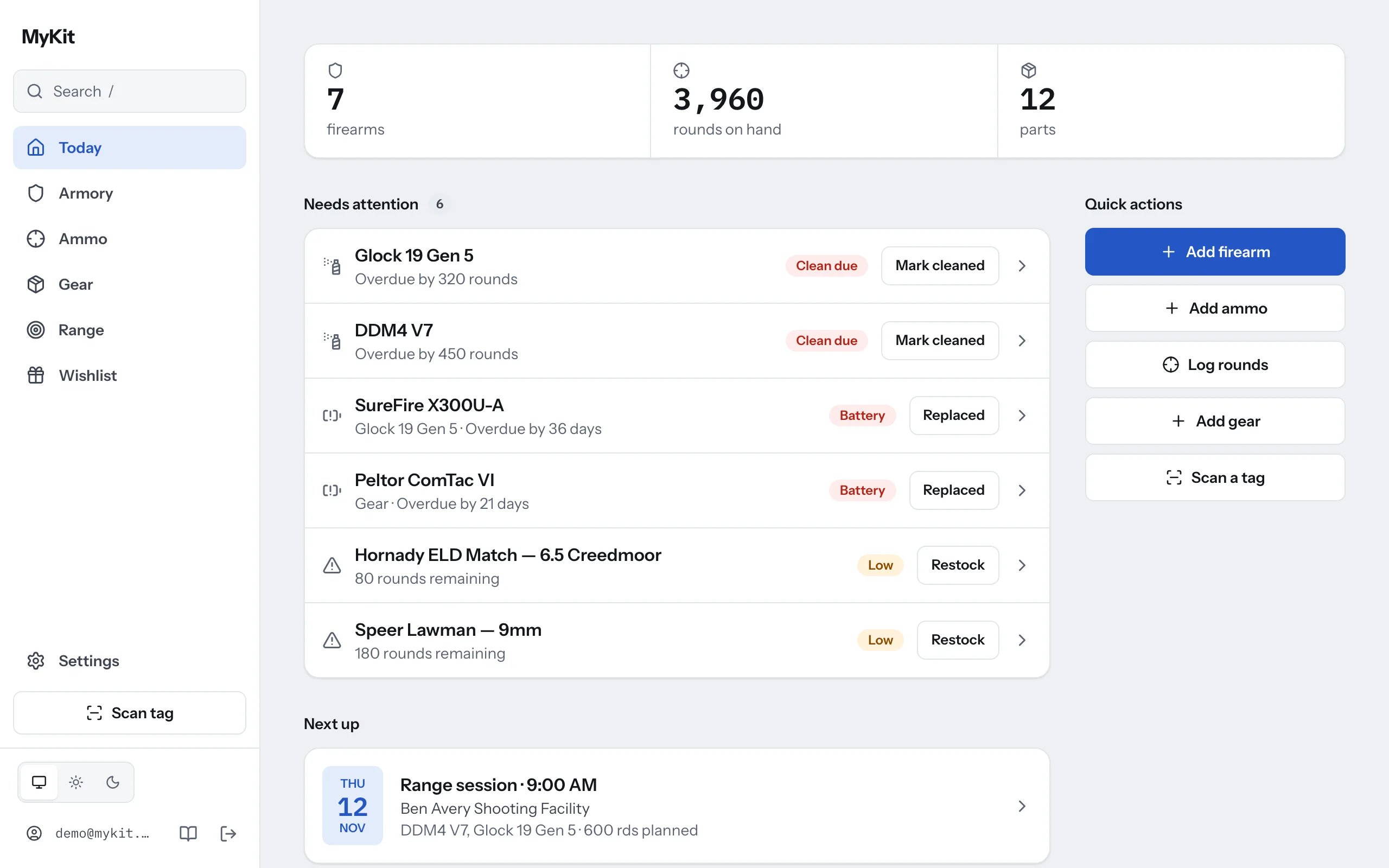
Needs attention
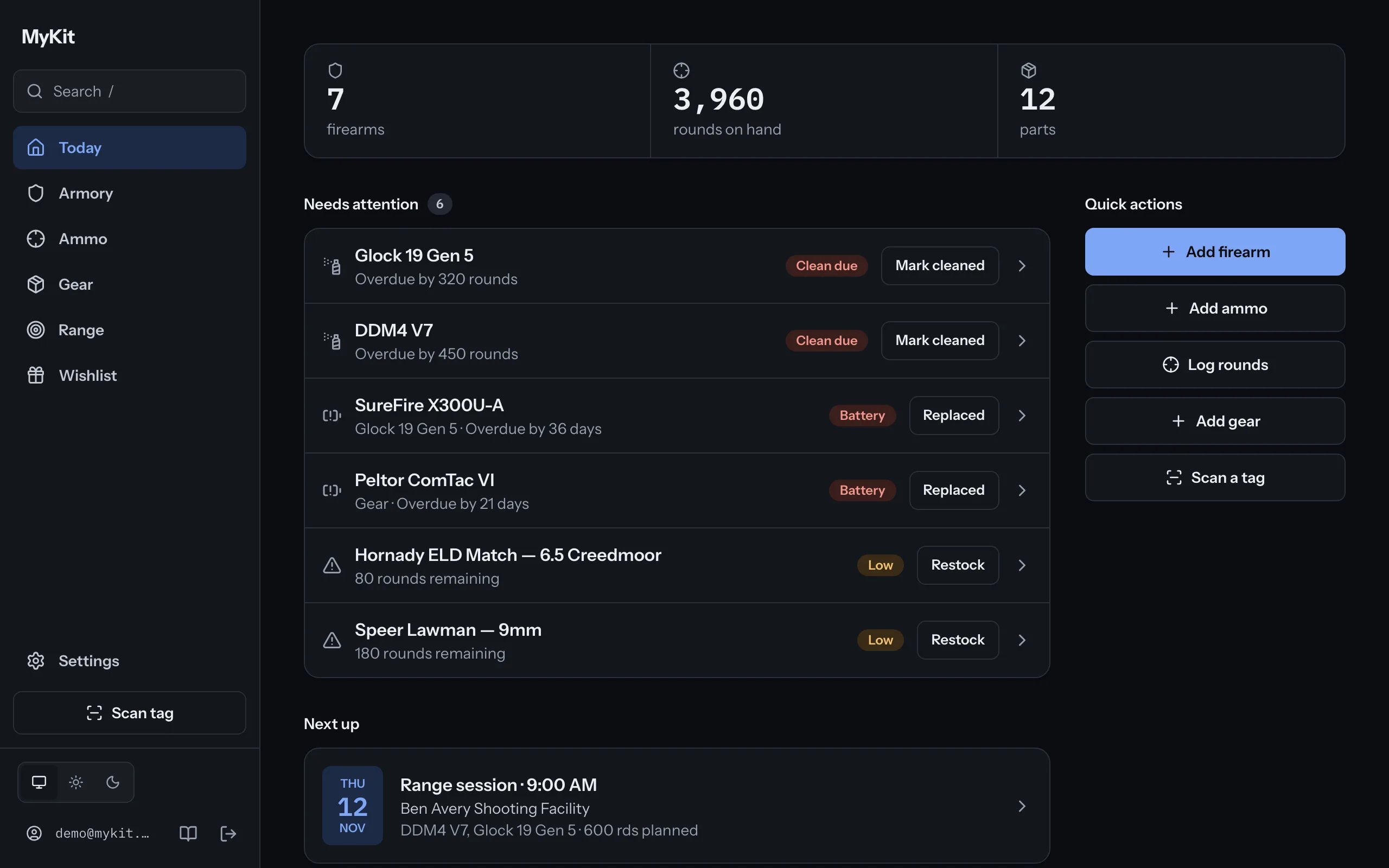
This list is the heart of Today. It fills itself as things come due, with a count next to the heading. The most urgent items come first, then warnings, then setup tips. Click or tap anywhere on an item to open it, right where the alert matters: a cleaning alert opens the firearm’s Care tab, an out-of-service firearm opens its Overview, a battery opens the part or gear item, and low stock opens that lot, component or supply. The buttons on an item do their own job without opening it.
Low and out alerts cover ammo, reloading components (powder, projectiles, primers and brass), consumable range supplies and cleaning supplies you track counts for.
Stock alerts only appear for items that have a low-stock level set. If you never set one, that item never shows as low or out.
Clearing items
- Mark cleaned records the firearm as cleaned at its current round count, adds a cleaning to the firearm’s history, and the item drops off the list.
- Replaced logs a fresh battery for that part or gear item and adds it to the item’s history.
- Restock on an ammo item asks how many Rounds added. Enter the number and select Add rounds to add them to that lot.
- If you saved a product link on the item, a link button opens it in a new tab so you can reorder.
Next up
Your next three planned range sessions and matches, soonest first. Each shows its date, start time, location, firearms and planned round count. Matches show their name and type, for example USPSA match. Select one to open it. Sessions and matches that have already started today are skipped. If nothing is planned, select Plan a session or Add a match to create one in Range.Quick actions
Shortcuts for everyday tasks:Getting around
On a computer
The sidebar on the left holds everything:- Search at the top
- The sections: Today, Armory, Ammo, Gear, Range and Wishlist
- Settings and, with NFC tags on, Scan tag near the bottom
- The theme switch, your email (select it to open your Profile), a link to these help docs, and Sign out
On a phone
A bar along the bottom gives you Today, Armory, Scan, Ammo and More. More opens a panel with search, Gear, Range, Wishlist, Settings, Profile, the theme switch, Help docs and Sign out. With NFC tags turned off, Range sits in the bar instead of Scan, and More doesn’t list it again.